Replace a paid voice generator with one that runs on your PC.
I wanted a narrator voice for my videos without paying every month or sending my scripts to someone else's server. Kokoro is a free voice that runs on your own computer. This guide sets it up from nothing, in plain steps.
- A Windows PC with an internet connection and about 1.5 GB of free space (keep 2 GB free to be safe). Everything downloads once, which takes about 8 minutes, and after that it works without internet.
- Path 1, the easy way. You paste one message into Claude Code and it sets everything up for you, which needs a paid Claude subscription and takes about 12 minutes, mostly waiting for downloads.
- Path 2, the free way. No AI and no account, you copy a few commands yourself and it takes about 15 minutes.
Both give you the same thing: a voice that reads your text and saves it as an audio file.
Path 1: the easy way, with an AI assistant
The assistant does the typing for you. You paste one message and say yes when it asks. You need Claude Code, which comes with a paid Claude subscription. If you have not installed Claude Code yet, start with Install Claude Code on Windows.
Make an empty folder
In File Explorer, create a new empty folder called voice, for example inside Documents, where everything will be saved.
Open it in Claude
Open the Claude desktop app and sign in. Click Code, then + New session. Set Project folder to your voice folder and Environment to Local.
Paste the message
Copy all of this, paste it into the chat, and send it:
Say yes and wait
Claude asks for permission before it installs anything or creates files, so say yes when it asks. The download takes about 10 minutes and it may look like nothing is happening, which is normal.
Path 2: the free way, by hand
Longer, but you see every piece and it costs nothing.
Open PowerShell
PowerShell is a window where you type commands instead of clicking, and it comes with Windows.
Press the Windows key, type PowerShell and press Enter to open it.
Check Python
The voice runs on Python, a free program. This command shows whether you have it.
$ py -0p
Look for a line with 3.11 or 3.12. If you see one of them, go to the next step.
If you have none of those, or the command says "py is not recognized", install Python 3.12:
$ winget install Python.Python.3.12
If you do not have winget, download Python 3.12 from python.org and tick "Add python.exe to PATH". Then close PowerShell and open it again.
Make a folder
What this does: creates a folder called voice and a private space inside it for the voice tool, so nothing else on your PC changes.
$ mkdir voice
cd voice
py -3.12 -m venv venv
This creates the folder inside your user folder, for example C:\Users\your name\voice. If your Python is 3.11, write -3.11 instead of -3.12.
Install the voice
What this does: downloads the voice tool. It is about 1.2 GB and takes about 7 minutes, and lots of scrolling text is normal.
$ .\venv\Scripts\python -m pip install kokoro soundfile
Create two files
What this does: script.txt is the text you want read. speak.py is a small program that reads it aloud.
Open Notepad and type a few sentences. Choose File, Save as, and save it as script.txt inside the voice folder.
Then make a second file with the content below and save it as speak.py in the same folder. Before you save, set "Save as type" to All files, so the file is saved as speak.py.
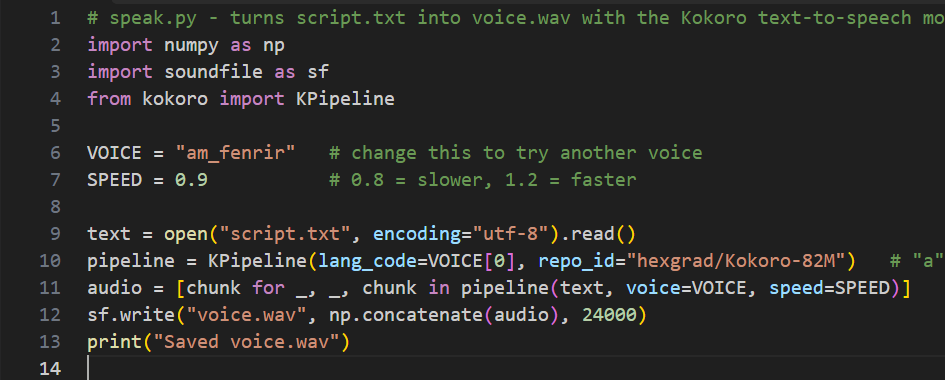
Run it
What this does: reads script.txt and saves the voice as voice.wav. The first run also downloads the voice model (about 300 MB), so it takes about a minute, and later runs take about 15 seconds.
$ .\venv\Scripts\python speak.py
Run the command from inside the voice folder, next to script.txt.

Pick your voice
To try another voice, copy a name from the table below, put it after VOICE = in speak.py, save, and run it again. The first letter of a name is the accent (a American, b British), the second is f female or m male. Listen to all of them here, the same sentence in each:
| Voice | Accent | Listen | |
|---|---|---|---|
| af_heart | American | Female | |
| af_bella | American | Female | |
| af_nicole | American | Female | |
| af_sarah | American | Female | |
| bf_emma | British | Female | |
| am_michael | American | Male | |
| am_fenrir | American | Male | |
| am_puck | American | Male | |
| bm_george | British | Male | |
| bm_fable | British | Male |
You can also change SPEED in the same file: 0.9 is a little slower and 1.1 a little faster, and you can try as many as you like.
Make another audio later
Your settings are saved in the two files. You only type one command each time.
Change the text
Open script.txt in Notepad, replace the text, and save.
Change the voice or speed (optional)
Open speak.py in Notepad. Near the top are two lines, VOICE and SPEED. Change them and save, and they stay as you set them.

Run it again
Open the voice folder in File Explorer. If you followed Path 2, it is inside your user folder, for example C:\Users\your name\voice. Click the address bar at the top, type powershell, press Enter, and run:
$ .\venv\Scripts\python speak.py
Keep the file you like
Each run replaces voice.wav, so rename the one you want to keep before you run again.
If you used Path 1, just tell Claude in the same chat what you want, for example "read this text with voice bf_emma, a little slower".
Use the audio file
voice.wav is a normal audio file, so drag it into your video editor (CapCut, DaVinci Resolve, Premiere) or play it anywhere. For a long text, split it into short paragraphs and make one file per paragraph, so a bad sentence is quick to redo.
How to get the best result
Try two or three of the 10 voices on the same sentence and keep the one that suits your video. The tone is calm and even, which fits explainer videos, tutorials and how-tos, in English. Split a long text into short paragraphs, make one file per paragraph, and listen to each file once before you use it.
Want more free tools like this? Follow my content and check my other posts.
Get the next guide when it is ready.
One email a week at most, and you can leave whenever you like.